Donate-large

If you like this blog, please make a little donation.

It's a secure process, and with your generosity I will be able to review more hardware and software.

Just click the "Donate" button below and follow the easy instructions, and I will thank you eternally.

Friday, September 16, 2011

Hands-on Windows Developer Preview (aka Windows 8 public beta build 8102)

Win8dev 1

Coinciding with the celebration of the //BUILD/Windows conference, Microsoft has released a public developer preview of their next generation operating system, codenamed "Windows 8".

This developer preview comes with a bundle of new applications, the preview of a new Visual Studio, and in two flavors, user and server, for x86 and x86-64 (amd64, em64t, x64, choose your alias).

System requirements are quiet low:

  • 1 Ghz x86 or x86-64 processor (nothing said about ARM)
  • 1 Gb of RAM for x86 or 2 Gb of RAM for x86-64
  • 16 Gb of free hard disk for x86 or 20 Gb for x86-64
  • DirectX 9 graphics device with WDDM 1.0 or higher driver

And yes, you read ARM. That little processors that populate our pads, stales, tablets, phones, cameras, life.

Because, in Microsoft words, Windows is reimagined. It now pretends to be an operating system able to run from the smallest little thing in our desktops (winds say "wPad"), to our biggest twelve-core gaming rigs with 60" plasma screens.

So, let's boot it.

Redactor's note: I installed it in VMWare Fusion 4 first (crashes on VMWare Fusion 3) and then do a reinstallation in real hardware. It should be able to update Windows 7 but I have not tested that yet.

Win8dev 2

Installation is pretty much the same as Windows 7, few choices, no headaches, and it's faster than 7's.

Things differ on the pre-usage questions. Now you can choice to answer nothing, or to be asked of everything.

If you choose the second, questions are the typical, how do you want to have updates installed? Is this a secure or public network?

Then the funny start, creating a user, or not. Now you can use your Windows Live ID for login (or create a separate user that then you can link to a Windows Live ID). If you do so, your password for login is the same, and your settings get synced between all of your machines that use that Live ID.

Win8dev 3

And so this is. "Start menu" dies and becomes "Start screen", filled with tiles.

If you have a Windows Phone, this will sound not just similar, but identical. It's the same UI used there, and here it's called Metro.

Windows Developer Preview comes with a huge bunch of test Metro applications, and misses a huge bunch of classic Windows applications.

And you'll miss a touch-screen or multitouch device, because, Metro is horizontally aligned, and using a mouse scroll does nothing, so you have to manually move a scroll bar to the right to see what's hidden.

Win8dev 4

Internet Explorer 10

One of the first Metro apps you can see is Internet Explorer 10, with a simplified "goes to the point" interface.

Navigation is moved to the down, with a back button, a "site button", the address bar, refresh button, pin button (that will create a tile to directly access this webpage from Metro), favourite button and forward button.

No mess, this is all, nothing more. Flash is not included, and rumors say it won't never be.

A new feature is that the site button is able to detect if a site belongs to an application you have installed.

Win8dev 5

For example, the //BUILD/Windows conference webpage recognizes you have a BUILD application installed and allows you to launch it directly just clicking the "site button".

Win8dev 6

Tweet@rama

This new applications is just a Twitter client, nothing more.

At first start it will present you with the Twitter webpage to authorize an external application, and then you have your timeline, your posts, the people you're following and your followers at a glance.

Simple to use, gets to the point, and lovely to use.

Win8dev 7

Stocks

Simply what it says, shows you the stocks you want, with a detailed view, market news and graphs.

Oh yeah, Apple keeps growing :p
Win8dev 10

Weather

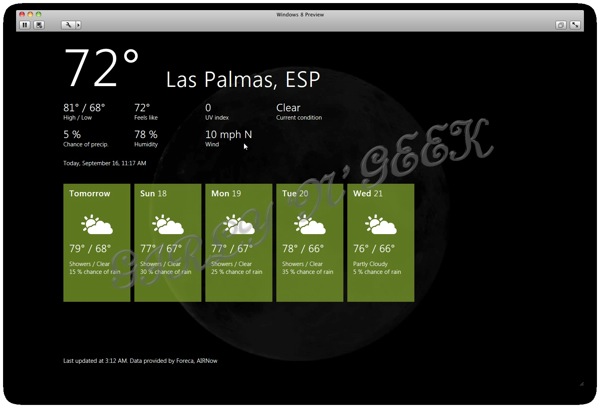
This tile shows you a weather forecast of the city you choose, in Farenheit.

This is a beta and they have forgotten all the people in the world that uses Celsius scale, there is no option, nowhere, to change it.

By default the city it shows is Anaheim, CA, the city where //BUILD/Windows conference is done.

You can choose it to detect your current city.

Win8dev 8

And then it will fail. Because location is disabled by default. I enabled it but it was unable to find my city even then, so I had to manually input it.

At the time I tested it, it was day on Anaheim, and it showed an animated beach photo behind the forecast, and my city was night, and it showed an animated Moon.

Win8dev 9

Control Panel

There is a new Metro-based control panel with things in a manner that remembers me of the iPad control panel. Probably the Windows Phone one is similar (I have yet to test a device, donations welcome).

Things are sortered by category, with enable-disable toggle buttons.

This things affect all Windows, not just Metro things, but are mostly Metro oriented.

You have the option to go to the old-and-good Control Panel from here with just a click, sorry, touch.

If you see the screenshot you'll see that I captured the Notifications panel. Yes, because, now, applications can send notifications while suspended or closed, so if you receive a message on Facebook, it will show up.

Win8dev 11

Socialite

Oh, did I say, Facebook?

Included also between the Metro apps is Socialite, a Facebook application.

Again, for accessing your Facebook data, it opens the Facebook permission webpage, and voilà.

Win8dev 12

At a glance you can see your wall, your profile, your photo albums, your friends (and their things) and the checkins.

Indeed I love it quite more than the real Facebook page.

Win8dev 13

News

News is a feeds reader. By default it comes with a lot of feeds categorized, or you can add your own.

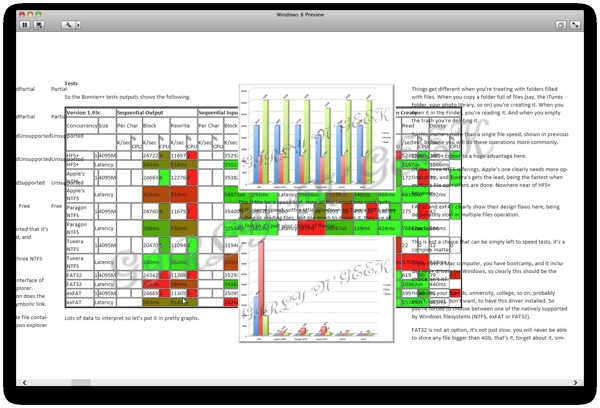
I added this blog, however...
Win8dev 14

There are some failures in the rendering (ugh!), but remember, this is a beta, shit happens.
Win8dev 15

Windows Store

Coming soon!

Windows Store is ala Windows Marketplace, ala Android Market, ala Apple App Store and Mac App Store.

It is simply a place where developers can put their applications so they are sold in a centralized site, all the payment shit handled by Microsoft (that will gain a percentage).

It's great for users, it's great for developers, and it's a must for Metro applications.

Metro applications cannot be installed other way, so you're forced to use Windows Store.

Win8dev 17

Metro revisited

Now that I have setup my twitter and facebook account, that I've chosen my favourite blog and that I selected my city and some stocks, Metro is alive!

Yes, every tile gets updated live, even if their corresponding applications are closed.

Socialite shows photos of my facebook friends, News shows random articles from this blog, Stocks shows how Apple keeps growing, and Weather says me I'm at 72ºF (I don't know if this is heat or cold).

And, by some reason I don't understand, Tweet@rama is showing things I'm not following.

This is, along with notifications, one of the things taken from smartphones world to desktop with metro. The same as Windows Phone tiles update live with the newest information, does Metro.
Win8dev 18

Other example applications

So that were the most important Metro applications bundled with this developer preview.

There are a bunch of other ones but I'll mostly do a small resume and some screenshots.

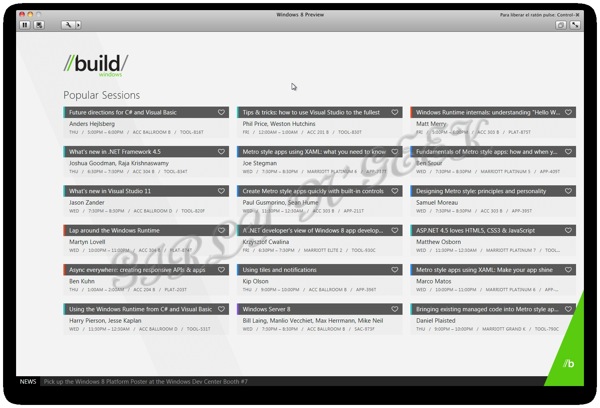
BUILD is a Metro application that gives you at a glance access to the sessions of the //BUILD/Windows conference

5 in a row is a Metro based Go game
Win8dev 20

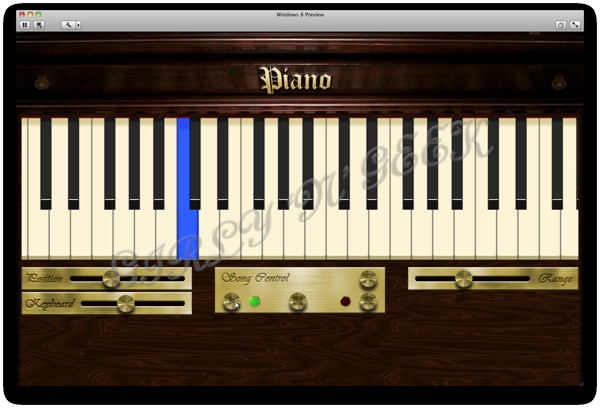
Piano is a touch-oriented piano. While you can play it with a mouse you can see me playing it here and check by yourself is not easy to do.

Win8dev 21

Paintplay is a touch oriented paint program with not much options. Funny for kids, useless for anything else.

Win8dev 22

Labyrinth is what the name says, a labyrinth game, nothing more.
Win8dev 23

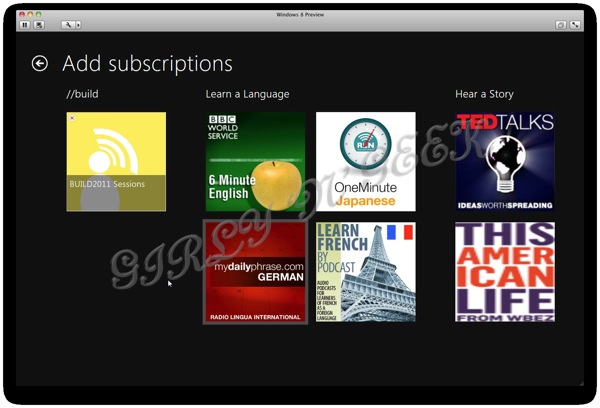
Mopod is a podcast browser and player. However there seems to be no way to add podcasts not included in the default directory.
Win8dev 25

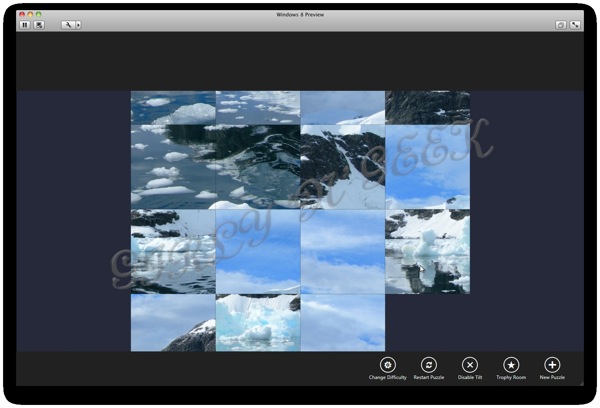
Tile puzzle must I say more?

Picstream shows a stream of photos from Flickr chosen by popular tags. You cannot login in your account, you cannot browse, you cannot choose any tag (only ones shown randomly between the most popular ones), quite useless.
Win8dev 26

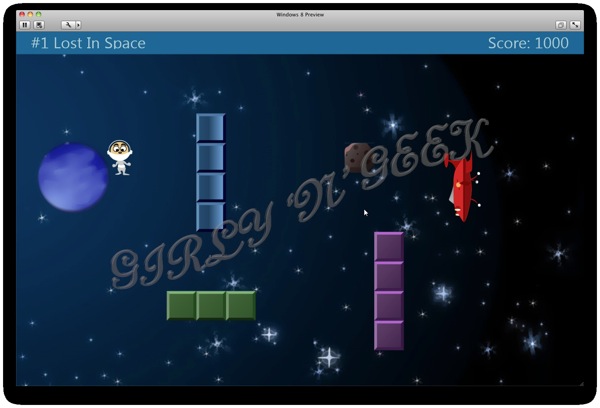
Zero Gravity is a simple game where you have to get the astronaut to his ship.

Win8dev 27

MeasureIt is... ok, 24 hours later I'm still trying to figure what the hell is it for.

Win8dev 28

Alarms are just that, alarms, so your Windows 8 "device" can wake you up.
Win8dev 29

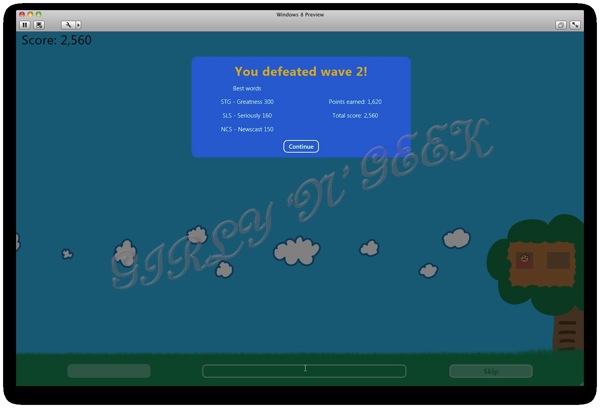
Treehouse Stampede! is a word game. It gives you three letters and you must form a word with all of them to launch a ball to the enemies so you kill them before they arrive the tree. Yeah the graphics seem done by a kid.
Win8dev 30

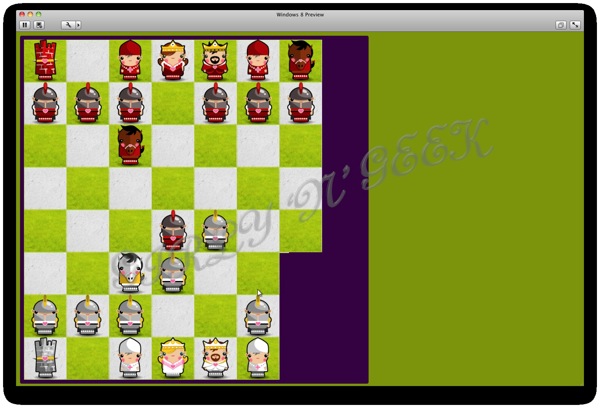
CheckM8 is a simple chess games, with graphics glitches that made it unplayable.

Memories Your Life Book is an application that allow you to create digital photo albums with any photos you have on your computer and then show them in slideshows to your friends, family, so on.

Tube Rider is a game where you have to construct a tube using pieces to arrive the goal in time.

Word Hunt is a game where you must form words of 3 or more letters using adjacent pieces.

Notespace is an application where you can create post-it, handwritten, using keyboard, or capturing a photo/video from an integrated camera.

Flash cards is a simple game for little kids that shows a question and a list of possible answers.

Ink pad is a notepad with handwritting recognition.

Sudoku talks for itself.

Copper is the classic movement puzzle where you have to move block to access the goal with a limited number of movements.

Air Craft shows you how to make a paper aircraft.

Bit Box mixes up different sound files you have on your computer to create that composition that will make you famous (or not).


The missing bits

First of all the most important thing missing is the Start Menu. It's nowhere, don't search it like crazy because you won't find it.

So where have all the things not Metro-enable gone? Good question.

While Windows 8 still comes with things like Microsoft Paint, Wordpad, Windows Mail, Windows Media Player, they are not accesible unless you go to their location with Explorer.

And what will happen with applications that I install myself and are not Metro enabled? You can create a shortcut on Metro, but it will not appear there by default, so, again, manually going to where it is installed.

Also the Metro-enabled Internet Explorer does not support Adobe Flash. If you install it, it will simply do nothing. You still have the non-Metro-enabled Internet Explorer, just in case, as a shortcut in the Desktop.

The only two new confirmed things that were not present in my previously analyzed Windows 8 Milestones is "Windows To Go", that allows you to create a bootable USB disk with Windows 8 and your configuration, and the inclusion of .NET Framework 4.5.

So, this is all, from an user perspective.

If you are a developer, visit //BUILD/Windows conference webpage and start checking the talks. There are a lot of new things to do with applications, Metro, and all of that.

Personally I don't dislike Metro, but I think that it's a huge change from what users expect from Windows. It needs polishing, it needs a way to access the old and good Start Menu applications, and it needs more native applications.

Windows has been reimagined, and if it is for the good or for the bad, time will say.

Tuesday, August 30, 2011

Comparison of NTFS drivers for Mac OS X

In this article I will compare the three current NTFS drivers for Mac OS X Lion as well as give a little definition about filesystems and about the major ones that can be used for interoperatibility between Windows and Mac OS X.

What's a filesystem?

A filesystem is the way that files are organized in a disk. Every major operating system comes with its own one, incompatible with the others. Windows comes with NTFS, Mac OS X comes with HFS+ and Linux with ext4.

This articles centers on comparing how to interchange files between Windows and Mac OS X so only the filesystems that can be commonly used by both will be discussed. Those are NTFS, FAT32, exFAT and HFS+.

There is also another filesystem, UDF (from Universal Disk Format) that was created to be universally compatible with all operating systems. It's the one used by DVD and Bluray discs, but its usage outside this kind of disks (like for example in hard disks or flash drives) requires deep knowledge of the operating system, as for example, Windows won't allow to read a UDF formatted hard disk unless tricked to do so, and Mac OS X doesn't offer an option to format anything this way easily.
What's FAT32?

FAT32 (also known as File Allocation Table, 32 bit) is an evolution of the original MS-DOS filesystem, introduced in 1995 with Windows 95 OSR2. It's a fragile filesystem with severe limitations (maximum filesize is 4Gb, Windows cannot format drives bigger than 32Gb on it, it does not support user security/permissions, fragments heavily, etc) but however almost every operating system out there can read and write it perfectly. It's also used extensively in any kind of device using mass storage (phones, digital cameras, DVRs, etc).
What's NTFS?

NTFS (also known as NT File System) is the native filesystem introduced with Windows NT. It's a very clever filesystem, that introduces compression, alternate data streams, security, etc. However its specification are a secret, and just only in the recent years enough of it has been reverse engineered to allow drivers to fully support it.

What's HFS+?

HFS+ (also known as Hierarchical File System Plus and Mac OS Extended) is the native Mac OS X filesystem, first introduced with Mac OS 8.1. It supports features unique to Mac OS like FinderInfo and the Resource Fork. It added new features from UNIX (permissions, links) and alternate data streams, security, etc, over its predecesor, HFS.

What's exFAT?

exFAT (also known as Extended File Allocation Table) is a new filesystem designed for Microsoft to be used on flash drives. It overcomes the most important FAT32 limitations without the complexity of NTFS, and is mandatory to any device claiming to support the SDXC and Memory Stick XC cards to support it. However, its specification is secret, patented and require a paid license to implement a driver (I still need confirmation from a lawyer that this applies in the EU). Currently only Mac OS X and Windows Vista or 7 support it out-of-the-box.

A little filesystem terms glossary

Alternate Data Stream (aka Fork): An ADS or Fork is a piece of data that comes alongside the file's data, but is independent of it. It should not be confused with metadata, that can be stored inside the data, and can be stored as ADSs. It can contain things like image thumbnails, URL where the file was downloaded from, the instant messaging contact's name who send it, so on.

Resource Fork: The Resource Fork is a special ADS that Mac OS previously depended extensively on (not anymore on Mac OS X, but files from previous versions and its applications can be simply broken if they lose it). It's specifically designed as a database of data types, like application pieces, rich text style, so on. NTFS stores it as an ADS called "AFP_Resource", and HFS+ stores it independently. Mac OS X stores them in filesystems that don't support it in separate files prepending "._" to the filename.

Extended Attributes (aka EA or xattr): Extended attributes are small alternate data streams usually limited in size. Its concept was first introduced in OS/2 to store things like the file icon, the filename, etc. FAT versions precious to FAT32 supports them natively (only on OS/2 and Windows NT), NTFS stores them as ADSs and Mac OS X 10.4 calls its ADSs so (but it doesn't limit the size). They are also supported by most Linux filesystems.

Finder Info: Finder Info is a collection of attributes that were required by Mac OS versions previous to Mac OS X. They store the icon positions in a folder, provide support for the Aliases, and stores which application created the file and what kind of file is it (Mac OS previous to X required this to know that a JPEG is a JPEG and it should be opened with Photoshop, X can live without this). NTFS stores it as an ADS called "AFP_AfpInfo".

Alias: The Alias is a Mac OS feature, where it creates a shortcut to a file that works even if the file is still moved to another place (it stores the file and volume unique identifiers to always find the file wherever it is). They are implemented using the resource fork, and OS/2 provided a similar feature called Shadow using EAs.

Symbolic link: A UNIX feature, a file is created that shorcuts to the exact location of another file, so if you move the original file the link is broken.

Hard link: A UNIX feature where a file information is duplicated but not its content. That's, there are two files that are really just the same (you modify one, both get modified), and until all hard links of the same file are not deleted the file isn't either.

The tests, explained

In this article I'll test the three NTFS offerings for Mac OS X that are currently available and supported under Mac OS X Lion, as well as the exFAT, FAT32 and HFS+ filesystems, for features and speed.

While Mac OS X Lion comes with an NTFS driver of itself, designed in-house by Apple, opensource and programmed by the guy that did most of the NTFS reverse engineering, it's as of today, unsupported. Drives are not writeable unless you do some command line tricks (that I will not explain in this article), and even if you do this nothing is warranted to work. If it makes your hard disk burn, or you lose all your data, or an alien abducts you for using it, Apple will say "we told you it's not supported". However, it passed all my tests without a single corruption, so, at your own risk!!!

Paragon Software offers us, among other filesystem drivers, with Paragon NTFS for Mac, compatible with Lion from 9.0, however they do some things I don't like. They exaggerated their features comparison saying that the Apple driver doesn't support NTFS features it does however supported even before Paragon did.

Finally Tuxera offers us Tuxera NTFS for Mac, a commercial solution that evolved from the opensource NTFS-3G widely used for NTFS support on Linux. They still support PowerPC macs (my PowerBook G4 is happy) and were the first to support storing the Resource Fork how NTFS is designed to store them, inside an ADS and not a "._" file.

For the test I basically did two things. The first was creating a separate folder inside the volume, copying different files. One is a Mac OS 7 application, that heavily relies on its Resource Fork (it's data being 0 bytes indeed) and its Finder Info. Then I copied a disk image file that contains four different Mac OS X extended attributes. Then I created some plain text files with names that are not supported by Windows (but they are supported by NTFS, see below). Then I created a symbolic link of a JPEG file and a hard link of it.

Finally for the speed tests I used Bonnie++, with this command line: bonnie++ -d /Volumes/Test/test/ -s 4095 -n 100 -m fat32 -u claunia -f -b

Test machine is a MacBookPro5,4 with 4Gb of DDR1066 RAM, Mac OS X Lion 10.7.2 (11C26), and a Samsung 2.5" IDE hard disk inside an Alcor Micro USB 2.0 case. Tests were done with all applications closed and through a network shell so the GUI is in background and not consuming important foreground memory and cycles.

Note on filenames

NTFS supports ANY character in a filename but the NULL one (byte 0x00). Windows however does not support characters from 0x00 to 0x31, "<", ">", ":", " " " (no spaces, double quotes character), "/", "\", "|", "?" and "*". It also doesn't support files that are end on a space or a dot. More information here. While those files can exist in NTFS volumes, no Windows application will ever be able to do anything with them (access, rename, move, copy, delete, open, close, say it, won't work).

UNIX system supports ANY but NULL and "/".

Mac OS supports ANY but NULL and ":". Mac OS X stores files containing "/" as ":" in HFS+ but shows it to you as "/" (tricked!). Also Mac OS includes the Apple logo character "" (you won't see it unless you're reading this article under any Mac OS version), that's unsupported anywhere else.

Microsoft designed Windows NT to be interoperable in networks containing Mac OS clients, and to serve files to them (with the now deprecated Services for Macintosh product), so they created a way to store filenames unsupported by Windows on NTFS, so Windows will be able to access ithem, and Mac OS will be able also, showing the correct filename to Mac OS network clients, and a fake one to Windows machines. It's described here.

Feature comparison


HFS+

Apple's NTFS

Paragon NTFS

Tuxera NTFS

FAT32

exFAT

Resource fork

Supported

Supported

Partial

Supported

Partial

Partial

Extended attributes

Supported

Supported

Partial

Supported

Partial

Partial

FinderInfo

Supported

Supported

Partial

Supported

Partial

Partial

Hard links

Supported

Supported

Supported

Supported

Unsupported

Unsupported

Symbolic links

Supported

Partial

Supported

Supported

Unsupported

Unsupported

Filenames

Supported

Supported

Supported

Supported

Supported

Unsupported

Cost

Free

Free

$19.95 / version

$36.25

Free

Free

Partial support means it's stored in "._" files, supported that it's stored as the filesystem designed them to be stored, and unsupported that they simply, won't work.

On links there is a curious difference between the three NTFS implementations.

The Tuxera symbolinc link seems to use the POSIX interface of NTFS, and it's not directly accepted by Windows explorer. However, it's the way NTFS was designed to. Paragon does the same. And Services for UNIX will recognize it as a symbolic link.

Apple's implementation however stores it a a simple file containing the path to the destination, and neither Windows explorer or Services for UNIX recognize it as a link.

Tests

So the Bonnie++ tests outputs shows the following.

Version 1.93c Sequential Output Sequential Input Random
Seeks
Sequential Create Random Create
Concurrency Size Per Char Block Rewrite Per Char Block Num Files Create Read Delete Create Read Delete
K/sec % CPU K/sec % CPU K/sec % CPU K/sec % CPU K/sec % CPU /sec % CPU /sec % CPU /sec % CPU /sec % CPU /sec % CPU /sec % CPU /sec % CPU
HFS+ 1 4095M 24722 4 11657 2 35292 2 274.3 3 100 18243 77 44878 99 9321 58 253 2 52737 99 107 1
HFS+ Latency 344ms 518ms 35023us 257ms Latency 99931us 1438us 16793us 858ms 1187us 1066ms
Apple's NTFS 1 4095M 24663 6 12276 2 35382 3 288.9 17 100 401 60 1558 22 839 16 327 68 172 2 71 1
Apple's NTFS Latency 425ms 619ms 58872us 291ms Latency 99838us 73278us 346ms 468ms 46196us 692ms
Paragon NTFS 1 4095M 24760 4 11675 2 35400 3 295.0 5 100 206 81 3203 33 455 12 186 77 275 3 42 1
Paragon NTFS Latency 296ms 530ms 22544us 161ms Latency 587ms 36047us 119ms 424ms 76842us 596ms
Tuxera NTFS 1 4095M 20470 5 11094 6 31946 4 170.2 4 100 410 68 3875 18 1120 15 95 19 22 0 12 0
Tuxera NTFS Latency 180ms 382ms 193ms 4658ms Latency 79166us 138ms 1395ms 36988ms 37577ms 848ms
FAT32 1 4095M 24342 2 11708 2 35293 3 264.3 7 100 56 89 440 93 119 47 69 87 619 90 79 43
FAT32 Latency 528ms 586ms 74162us 3436ms Latency 286ms 34503us 343ms 368ms 20362us 440ms
exFAT 1 4095M 24665 2 11305 2 35095 3 254.2 23 100 51 79 305 85 69 53 49 79 399 80 56 50
exFAT Latency 363ms 514ms 262ms 1456ms Latency 323ms 69381us 333ms 356ms 55743us 443ms

Lots of data to interpret so let's put it in pretty graphs.

Speedtest

This is the bare speed test. Here all the filesystems work quite at the same speed, with a little slowdown on Tuxera NTFS when writing or reading files. Not too much to discuss it, they are all as fast so it's just your choice of flavour.

Filestest

Things get different when you're treating with folders filled with files. When you copy a folder full of files (say, the iTunes folder, your photo library, so on) you're creating it. When you open it in the Finder, you're reading it. And when you empty the trash you're deleting it.

So this matters more than a single file speed, shown in previous test, because you will do these operations more commonly.

Clearly, HFS+ comes to a huge advantage here.

Of the three NTFS offerings, Apple's one clearly needs more optimization, and Tuxera's gets the lead, being the fastest when multiple file operations are done. Nowhere near of HFS+ however.

FAT32 and exFAT clearly show their design flaws here, being desperately slow in multiple files operation.

Conclusion

This is not a choice that can be simply left to speed tests, it's a complex matter.

If you have a Mac computer, you have bootcamp, and it includes HFS+ drivers for Windows, so clearly this should be the choice isn't it?

However, your friends, university, college, so on, probably won't, cannot, don't want, to have this driver installed. So you're forced to choose between one of the natively supported by Windows filesystems (NTFS, exFAT or FAT32).

FAT32 is not an option, it's not just slow, you will never be able to store any file bigger than 4Gb, that's it, forget about it, simply, erase from your mind, let it be only used by your digital camera and bye bye.

exFAT may seem the future, however it's just an evolution of FAT32 (supports files bigger than 4Gb, but anyway, same internal design), but it's still slow. However it's free to use on Mac OS X and if you don't care about the annoying "._" files that will be created all the way, just use it.

On NTFS, clearly Apple should end it and make it easy to use, integrated, free, writeable. Ok, we've been waiting years for this to come, so sit and wait, and on the meantime decide between Paragon and Tuxera.

Tuxera seems more expensive (but you pay just once per all versions in the future), slower on single files, but handles multiple files faster, and stores things the way they should be stored.

Paragon seems cheaper (you end paying more as every release you pay again), faster on single files, slower on multiple files, and creates the annoying "._" files everywhere.

So Tuxera and Paragon are quite equalled, it's up to you which one to chose.

Personally, I chose Tuxera, because I want to have the confidence that what I write on a NTFS drive using Mac OS X will be correctly identified by Windows applications as what they are (not only Services for Macintosh, Windows explorer recognize AFP_* ADS and inform you will lose them when moving to a filesystem that does not support them) without the annoying "._" files.

Tuesday, July 26, 2011

Virtualizing Lion with VMWare Fusion

Long ago when Leopard was launched, the end-user license agreement allowed Leopard Server to be virtualized. Same applied for Snow Leopard Server.

However now with Lion's launch, things have changed:

(iii) to install, use and run up to two (2) additional copies or instances of the Apple Software within virtual operating system environments on each Mac Computer you own or control that is already running the Apple Software.

As extracted from Mac OS X 10.7 end-user license agreement, that you can read here.

So now, beside that legal sentence is the meaning that you can run up to a maximum of three copies of Mac OS X Lion, one running real on bare hardware and two running inside a virtual machine.

VMWare Fusion added support to Mac OS X Server as a guest with Leopard Server, however it still has added no official support for Lion.

In this guide I'll explain you how to install it correctly.

Fusion 2  dragged

First of all you need to be sure you have the lastest version (3.1.3 as of this writing) installed. You can get it here.

I have tested this on both Snow Leopard and Lion hosts.

Second of all you need the Lion Emergency Startup Disk, in image, USB or burnt (you can see where it is, called InstallESD.dmg, here).

Third of all we'll create an installer image, so go to Utilities (Cmd+Shift+U on Finder), open Disk Utility and create a new image with the following parameters:

Screen shot 2011 07 26 at 1 30 36 AM

Now insert or mount Lion ESD. We need now to go to the Terminal (open it in Utilities) and start with command:

hdiutil mount "/Volumes/Mac OS X Install ESD/BaseSystem.dmg"

Now a new drive will appear mounted, called "Mac OS X Base System" and we return to disk utility to copy this volume to the disk image we created earlier.

Screen shot 2011 07 26 at 1 35 49 AM

Be sure to have marked "Erase destination". After a couple of minutes we will have two disks called "Mac OS X Base System", that should be unmounted. Then double click the LionVMInstaller.cdr image and go to Terminal.

First we will copy the kernel cache from ESD to our installer image:

sudo cp /Volumes/Mac\ OS\ X\ Install\ ESD/kernelcache /Volumes/Mac\ OS\ X\ Base\ System/

And now we instruct the prepared image to use it, editing boot parameters, using nano, a text editor in Terminal:

sudo nano /Volumes/Mac\ OS\ X\ Base\ System/Library/Preferences/SystemConfiguration/com.apple.Boot.plist

And we write

<key>Kernel Cache</key> 
<string>\kernelcache</string>


Just before </dict> so it ends like this:

Screen shot 2011 07 26 at 1 43 11 AM

Now with pressing Ctrl+X keys it will ask to save, we press Y as in Yes and it's done.

Next step is copying installation packages from the ESD to the prepared image with the following two commands:

sudo rm /Volumes/Mac\ OS\ X\ Base\ System/System/Installation/Packages/

sudo cp -Rv "/Volumes/Mac OS X Install ESD/Packages" "/Volumes/Mac OS X Base System/System/Installation/Packages"

And now we create a file to make VMWare Fusion think this disk comes from a Server version, as it will expect.

sudo touch "/Volumes/Mac OS X Base System/System/Library/CoreServices/ServerVersion.plist"

And enough of the terminal for now. We unmount everything, start VMWare Fusion and create a new virtual machine.

We choose LionVMInstaller.cdr as the image to install from, and in case it does not detect it's Mac OS X, we choose as operating system "Apple Mac OS X" and as version "Mac OS X Server 10.6 64-bit".

Be sure to customize settings, then it will ask for the name. I named it "Mac OS X 10.7 Lion". Now choose Hard Disks and uncheck "Split into 2 Gb files" and Apply.

Go to Processors & RAM and put at least 2048 Mb and as more as you want and can.

Boot it.

It will crash, this is expected. For some reason the NVRAM values VMWare writes by default don't allow Lion to boot. Download a prepared NVRAM here.

In VMWare right click the virtual machine, "Show in Finder", right click it, "Show Package Contents", and replace the NVRAM file there with the one you just downloaded.

Screen shot 2011 07 26 at 1 59 35 AM

Go to VMWare Fusion and boot it again.

Screen shot 2011 07 26 at 1 56 21 AM

Now follow the installation instructions. When it finishes and reboots VMWare will complain it's not a server version, it's ok.

Reboot the virtual machine and as soon as the vmware logo appears in grey press the ESC key FAST!.

A menu will appear, and here we will choose "Boot Manager", that will present us with a list of detected boot devices, mostly the HDD and the prepared image.

Screen shot 2011 07 26 at 2 03 39 AM

Taking note that the first item "Mac OS X" contains the device path of the hard disk, we choose the "EFI SCSI Device" were PCI number or SCSI numbers changed (most probably, "EFI SCSI Device 1").

It will boot the installer again, but this time we will enter on Terminal. Utilities -> Terminal. Now here we write:

touch "/Volumes/Macintosh HD/System/Library/CoreServices/ServerVersion.plist"

IMPORTANT EDIT NOTICE: Some updates, specially Java runtime, will crash if you did this step. Doing this other one will solve it, and can be done in an already installed Lion VM:

sudo cp "/Volumes/Macintosh HD/System/Library/CoreServices/SystemVersion.plist" "/Volumes/Macintosh HD/System/Library/CoreServices/ServerVersion.plist"

When done, Apple menu -> Restart.

Screen shot 2011 07 26 at 2 11 25 AM

Now, enjoy it!!!

Saturday, July 23, 2011

Fourth iOS 5 impressions, beta 4

Ios5beta4 2  1

Today, iOS 5 beta 4 has been released to developers.

Mostly it includes bug corrections, huge stability corrections and the long awaited: iTunes Wi-Fi Sync for Windows.

However no iTunes 10.5 beta 4 for Windows has been seed as this writing.

For first time in the betas, you can simply update "over the air" (wifi required), without the need to install itunes at all for the update.

Long time still is in front of us before final iOS 5 arrives us in Fall, and with every beta more things are polished to perfection.

Ios5beta4 1  1

Friday, July 22, 2011

Lion gets updates, iWork, Apple Remote Desktop and iTunes

Captura de pantalla 2011 07 22 a la s 05 22 46

Less than one day from Lion launch, Apple seeds new updates for iWork, Apple Remote Desktop and iTunes.

You can get them using Software Update or manually downloading from Apple Support.

Captura de pantalla 2011 07 22 a la s 05 45 42

iWork 9.1

Long awaited by Lion users (ok, less than 48 hours of waiting, but LONG awaited) iWork now supports all the pretty good and beloved features of Lion.

Now we can simply sit in Pages Full Screen and forget all distractions while writing the last New York Times best-seller, having the confidence than in a catastrophic stop of electrical supply we will continue where we left Resuming in the same exact word.

And what if we saved just to say "oh oh! I deleted that important paragraph"! Lion to the rescue! We also get support for Versions, and in case we just forgot to save that new paragraph, Auto Save.

Of course all of this support is not just in Pages, but also in Numbers and Keynote.

I'm loving it! (and would love to have it on my iPad).

Little notice shown on this update improving compatibility with Microsoft Office documents and Keynote including two new builds.

More information on Apple Support.

Captura de pantalla 2011 07 22 a la s 05 44 49

iTunes 10.4

Available also for Snow Leopard and Windows, iTunes gets Lionized.

Ok Versions and Resume and Auto Save are not so much of a sense in iTunes (and not implemented in 10.4), but Full Screen may be for some users.

This is not the only change, previous iTunes versions (including 10.3.1 that came with Lion) were 32 bit only, but this new 10.4 is a pure 64 bit Cocoa application. This means, that compression and decompression algorithms (converting your recently bought CD to AAC or playing your just bought movie) will benefit from huge performance improvements.

The bad thing is that any iTunes plugin you were using will not be compatible until the developer updates it.

Unfortunately for Windows users it's still 32 bit, but it's still compatible with PowerPC G4 and G5 (my PowerBook G4 is happy :D), also 32 bit only.

More information on iTunes.com.


Apple Remote Desktop 3.5

Not so impressive, it mostly receives some reliability workouts, even if 3.4 worked flawlessly on Lion.

One new feature nonetheless is that when connection to a Lion client you can use the current logged in session, or open a new one in background invisible to current user.

One step toward "Apple Terminal Server" ?

More information on Apple Support.

Wednesday, July 20, 2011

Hands-on Lion, Mac OS X 10.7

NewImage.png

In this article I'll talk about everything new on Lion.

Some things were already on the developer previews and so I talked already about them, however, I'll do here again.

What's Lion?

Lion is the newest version of Mac OS X, Apple's operating system. It's also known as Mac OS X 10.7.

It's available from July 20, 2001 on the Mac App Store for 23,99 €, $29.99 or £20.99.

It comes as a download of 3,49 Gb, or for an extra premium cost you can buy it in an USB pendrive in Apple Stores.

You can also create your own DVD or USB pendrive once downloaded (but BEFORE installing) using my instructions. Also if you want to do a clean installation, you must do that or on reboot press Option key and choose "Recovery".

It's also the first version that the "family" pack (5 computers) comes for the price of 1, you just authorize with the same iTunes account up to five computers and it's legal to install it on all of them.

Officially Lion cannot support anything lower than a Core 2 Duo computer, however there are hacks you can do to install it. Same applies for Hackintoshes ;)

However system executables are only 64 bit and running on any kind of cpu without that support will simply not work.

Installation

Captura de pantalla 2011 07 20 a las 18 50 09

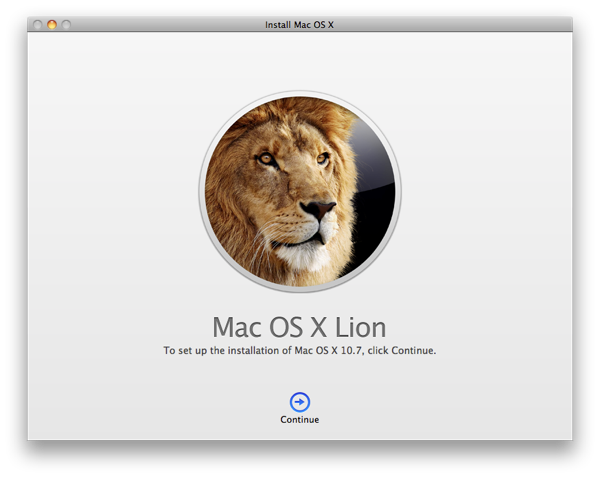
Once you have downloaded it, the installation application will load, make you choose destination hard disk and start preliminary checks prior to a reboot to the real installation.

The installation is slimmer, simpler and more elegant than previous ones and when it is finished there is no welcome video.

Considering its installing from hard disk to hard disk it's quite slow, taking more than one hour on my Mid-2009 MacBook Pro.

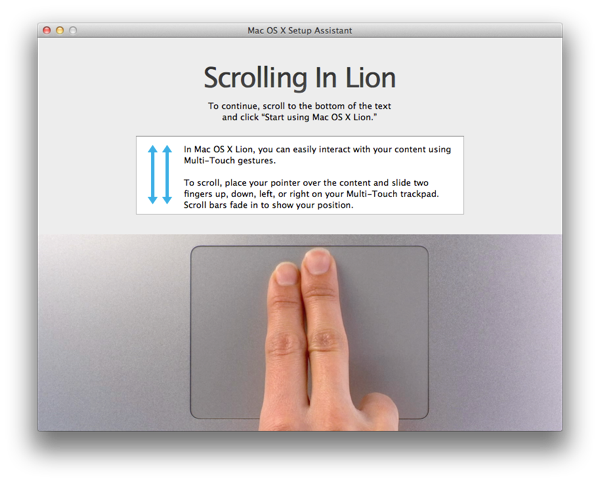
When you finish the installation you will be presented with a small tutorial about gestures.

Screen Shot 2011 07 20 at 20 18 14

System preferences

liondp4-15.jpg

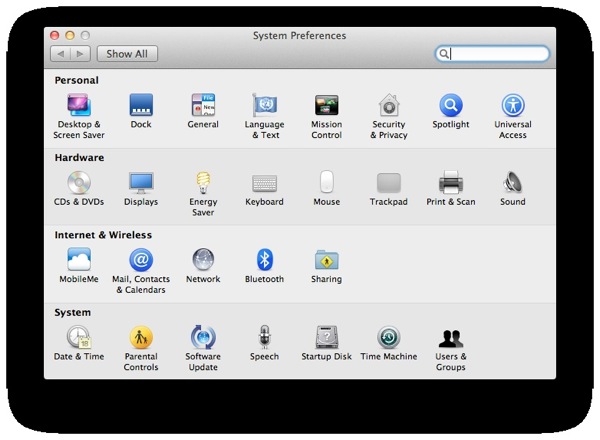
System Preferences get a little reordering (Universal Access is now a Personal thing not a System one) and the new "Mail, Contacts & Calendars" panel appears.

liondp4-16.jpg

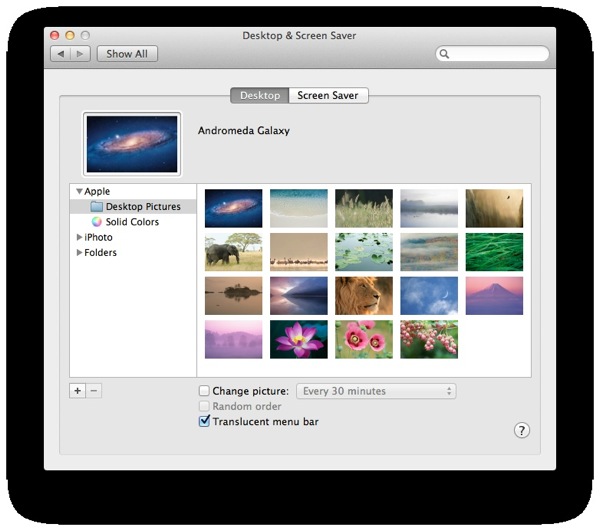
New pretty and real background pictures come with Lion, including but not limited to, Mount Fuji, M31 Andromeda Galaxy and a Lion (appropriate isn't it?).

liondp4-17.jpg

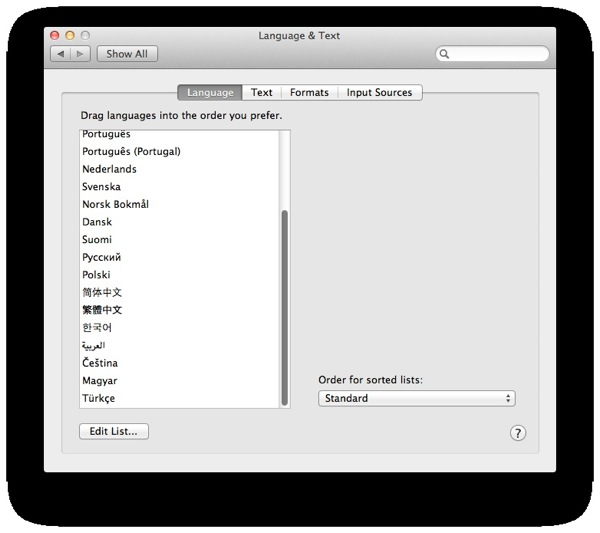
Lion includes new system-wide languages: Arabic, Czech, Hungarian and Turkish.

liondp4-24.jpg

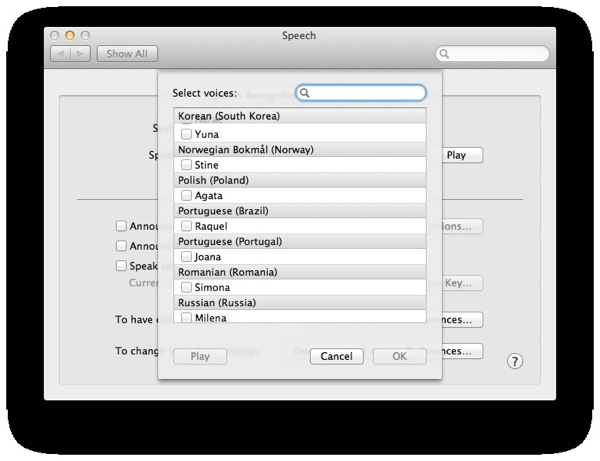
It also includes new text-to-speech voices, not just for all system-wide available languages but also for variations (Latin-American and Spain's Spanish), and non-present ones (Romanian). The bad is that they are downloaded from Apple on installation, making that small, the good of that is this would allow new voices to be added in updates.

liondp4-19.jpg

FileVault now encrypts the whole disk at once, not just the home folder, with a new and supposedly better algorithm (just another AES variation).

This adds a level of security (the whole disk is encrypted) and subtracts another level (another user can access your home).

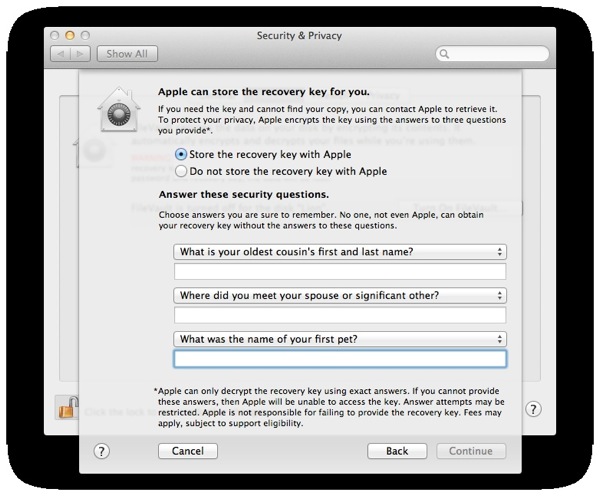
But there is also another level of security (or of control by some paranoids). The encryption key can be stored in Apple for recovery in case of absolute loss using three (chosen from a list of a dozen options) secret questions.

Screen Shot 2011 07 20 at 20 23 36

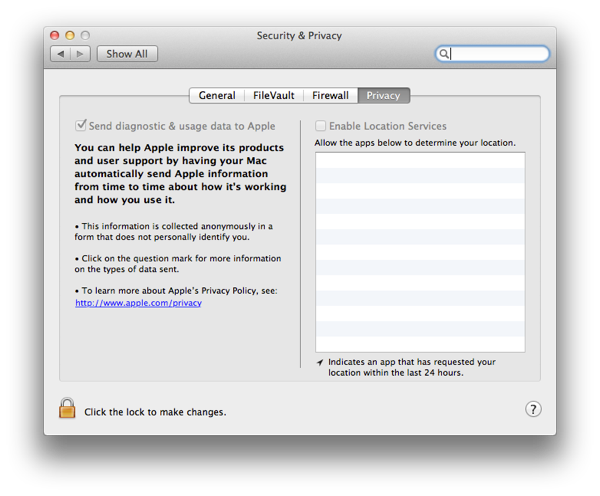
Also you can now choose some privacy options, like sending or not anonymous usage statistics to Apple and what applications can access Location services.

Screen Shot 2011 07 20 at 20 29 25

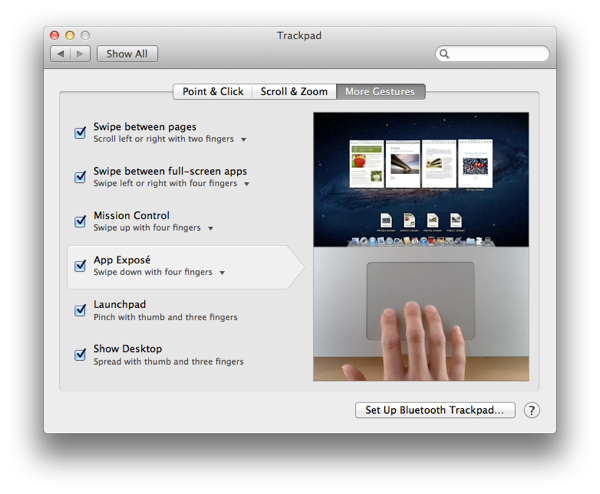
There are now a lot of gestures, so you can move pages, move full screen apps (leftmost Dashboard, second-left non-full screen, rest on order of full screening), open Launchpad, open Mission Control, so on. Of course this requires an integrated or a Magic trackpad.

You can do some of the gestures with a Magic Mouse but that is anything but comfortable.

Screen Shot 2011 07 20 at 20 32 55

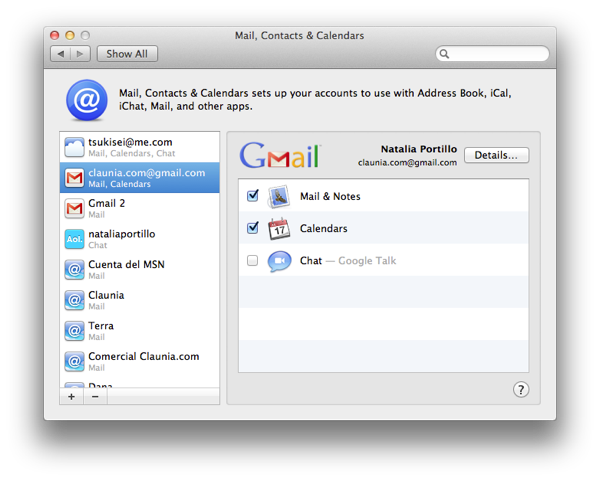
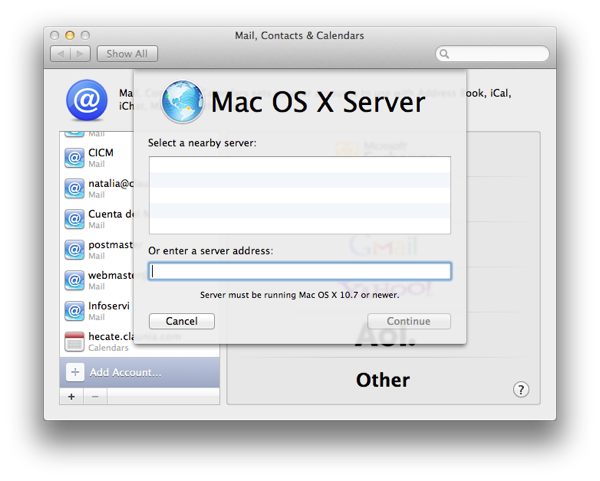
The new "Mail, Contacts & Calendars" preference panel allows an easy to access configuration of, mail, contacts and calendars services, like Google Mail, Yahoo!, MobileMe and iCloud.

It is plugin based, indeed iCloud must be installed separately right now (iCloud is expected to be ready on Fall) and MobileMe would disappear soon.

If you add your account to, for example, iChat, it automatically appears here (only instant messaging is enabled). If you add it here, you can enable it to appear on Address Book, iCal, iChat and Mail.

Screen Shot 2011 07 20 at 20 34 13

Mac OS X 10.7 Server accounts will also be supported here directly. Previous servers accounts should be added as CalDAV and LDAP.

liondp4-23.jpg

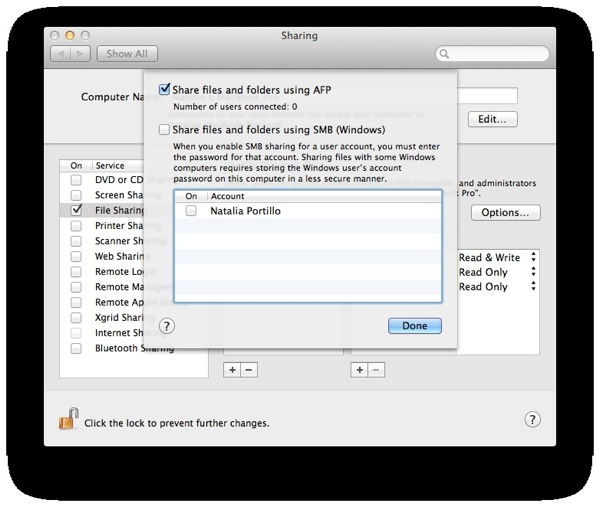
FTP disappears on file sharing and SMB (windows sharing) gets substituted by a fresh, new, clean implementation of the lastest SMB version (SMB2, introduced with Windows Vista), providing a huge performance boost with other Lion or Vista or 7 computers. The previous SMB software was Samba, used also in Linux, limited to the 20 year old SMB1 version.

liondp4-25.jpg

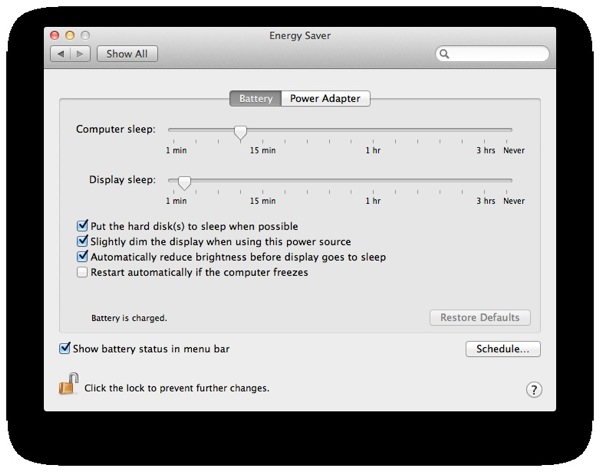
Also an option to automatically restart on a kernel panic (bluescreenofdeath for windows users) happens is added. In difference with Windows, the option is disabled by default, can be based on power source, and the information you obtain about the panic on reboot is some orders of magnitude better.

liondp4-26.jpg

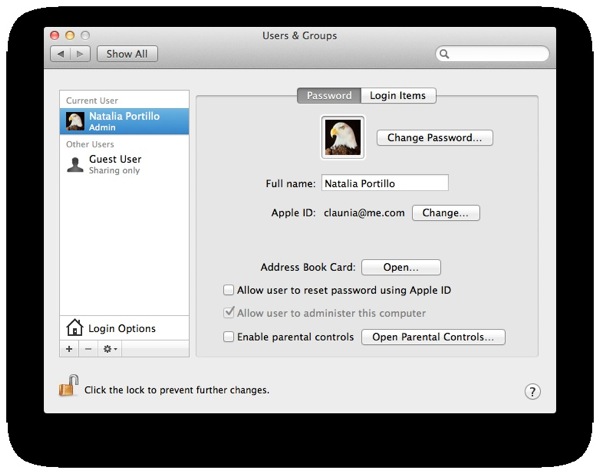
Now user accounts can be linked to any kind of Apple ID, not just a MobileMe one. It can be your iTunes Store account, your Find My iPhone account, your Apple Developer account, your Apple Forums account, you choose!

You can also allow your user password to be rest using your Apple ID, so if you forgot your user password but not your ID password, you can just reset it.

Applications

liondp4-4.jpg

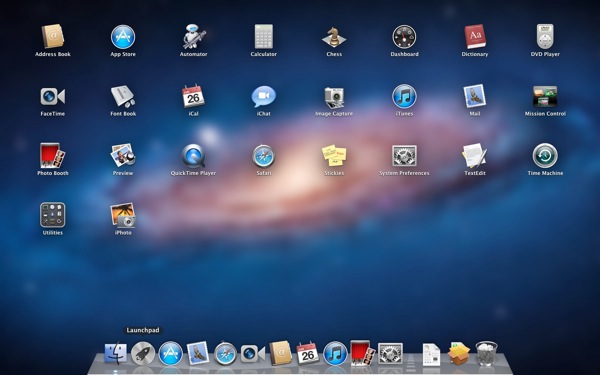
The most curious thing of Lion is Launchpad.

And what is Launchpad? Launchpad is an application menu for Lion. Indeed, it's the same one and old and touchy application menu used on iOS (called SpringBoard there), but now in Mac OS X.

You can create folders, delete applications, move them, have multiple screens, all in your fingers (integrated or Magic trackpad required).

It is also quite intelligent. If you add an application, it automatically appears there, if you move one to trash (in the old way, Finder-ish) it disappears, and if you install a folder that contains an application inside it (like Adobe Photoshop does) only the application icon appears here (if you delete it here the whole folder is deleted). Also it detects the Developer folder even if not being inside Applications.

And before starting with applications changes, let's see two things:

1.- Spaces has disappeared completely. I think no one will miss it.

2.- Applications can now run full screen (more or less same as in Snow Leopard having one app per space). NOTE: They CAN, you can choose to run them like before in a per-moment basis.

This fullscreen-ish does have some advantages (concentration on just one task), and some disadvantages (losing the ability to multitask). I have not tested fullscreen on multiple monitors, but it would be great to have the application you want fullscreened on the monitor you want.

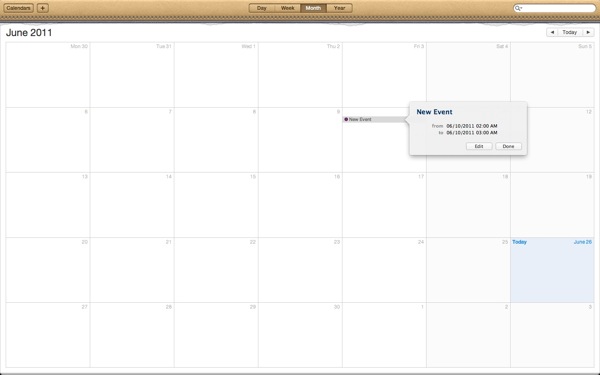
liondp4-5.jpg

iCal gets full screen. Aesthetic changes are small, but kind to the eye.

Yes only the upper part.

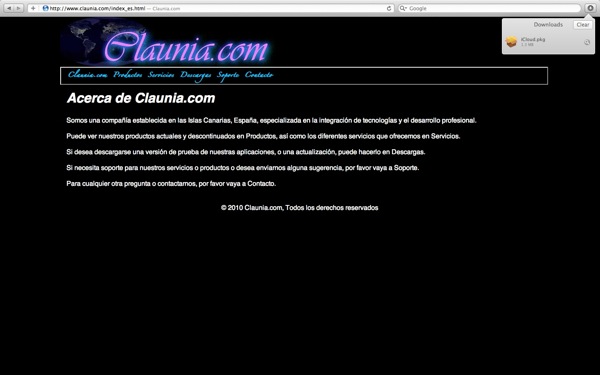
liondp4-6.jpg

Safari also gets full screen. Gets better HTML5 compatibility (as with every update) and a new, non intrusive, see it everywhere downloads list that I'm loving.

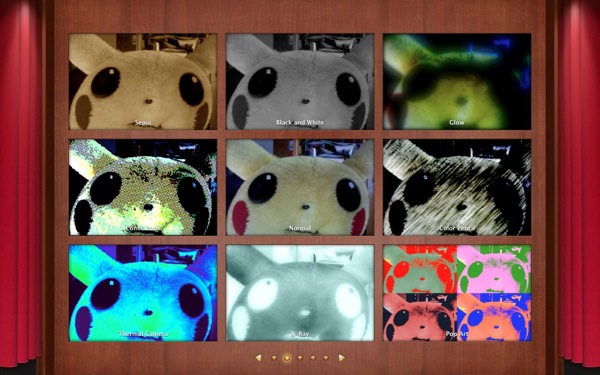
liondp4-7.jpg

Photo Booth also gets full screen. Adds new effects, specially interesting the ones that remove you from the video and adds a moving background.

That's my Pikachu, test subject on anything that requires camera :p

liondp4-8.jpg

Preview gets full screen, allowing better reading of books or multi-page documents. However I still miss iBooks for Mac OS X.

liondp4-9.jpg

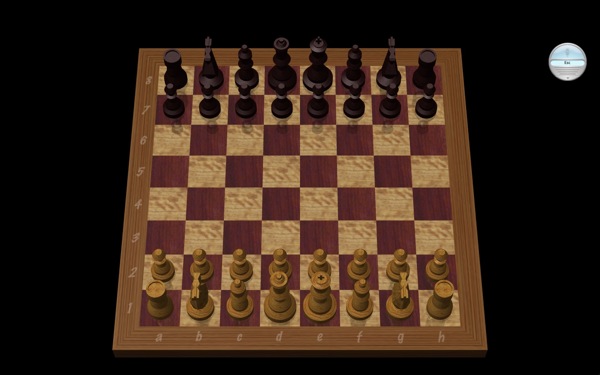
Chess also gets full screen, so you can concentrate on the King without distractions from the desktop.

liondp4-10.jpg

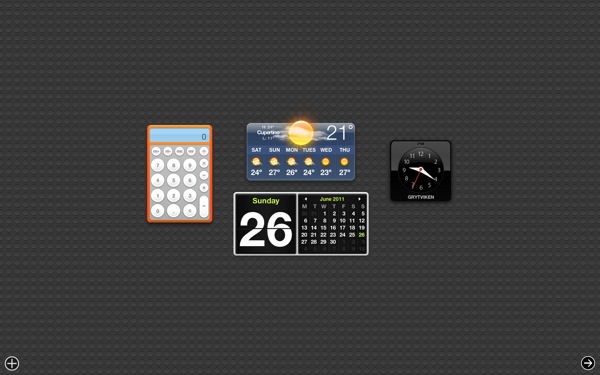
Dashboard is no more an overlay on the current view, but an always running full screen app that resides left-most in the list of full screen apps (more on the order below).

liondp4-11.jpg

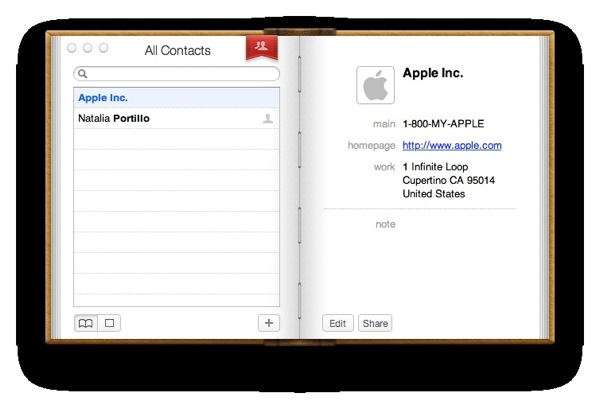
Address Book gets a radical aesthetic change to be more alike a, well, an address book.

Screen Shot 2011 07 20 at 21 33 30

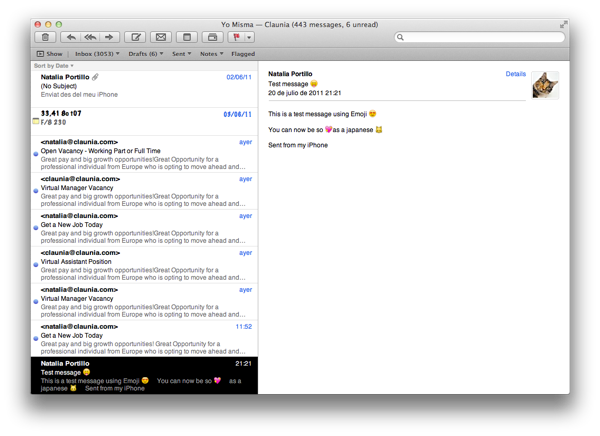
Lion includes a couple of new system fonts, but the most important to note for all of us is Apple Color Emoji. This font includes all the Emoji icons as seen on the japanese iPhone (or in rest-of-world with a little hack or iOS 5), so now you can see them in notes, emails, contacts, wherever you used them on your iOS device, when synced with Lion.

This also means new features for font designers, like adding support for colored glyphs.

liondp4-13.jpg

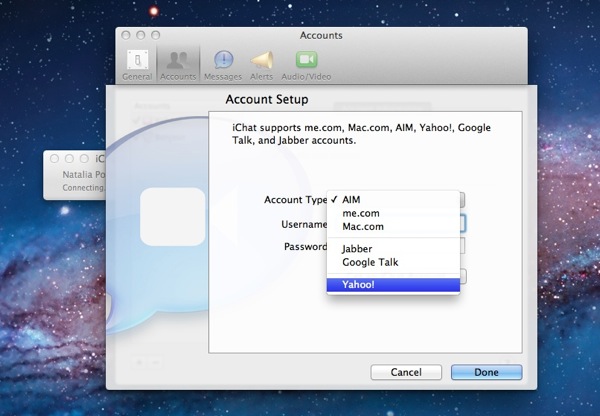
iChat now supports Yahoo! accounts out-of-the-box. And I say that, because now iChat support for messaging protocols is plugin base. So maybe in a future we'll see plugins for MSNP (Windows Live Messenger), Twitter, Gadu-Gadu and others. I hope this feature does not end in The Void.

It also joins all the contacts from all accounts in a single contacts list.

liondp4-14.jpg

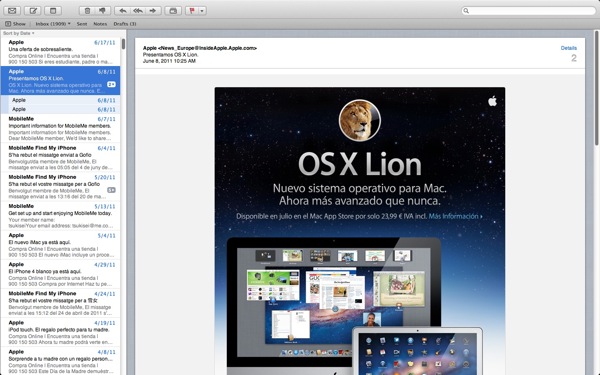
Mail gets full screen with an interface overhaul. It also joins conversations (dozens of "Re:" messages) in a single place so you can read them chronologically.

It also detects duplicates, and can hide the messages and/or folder list so you can concentrate on the email.

liondp4-28.jpg

QuickTime 7 disappears, completely. There is no remaining of Carbon. Ok, there is, the Carbon framework is still there, you can execute Carbon applications. But none are included with the system.

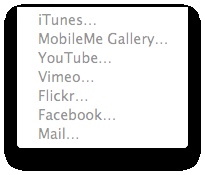
QuickTime X gets more editing features, and a bigger "share" list, adding Vimeo, Flicker, Facebook and Mail.

liondp4-27.jpg

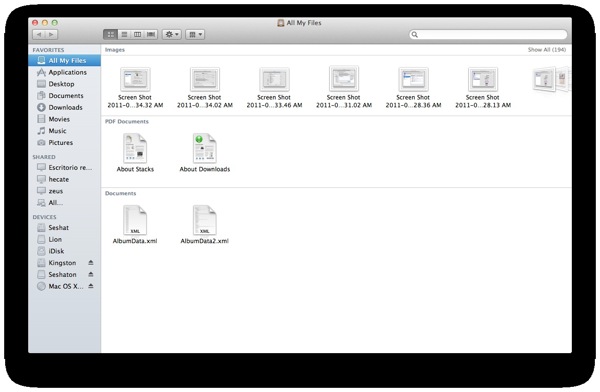
Finder also receives an aesthetic overhaul, and adds a new section called "All My Files" that made me tremble in fear.

It also gets more intelligent when copying, so when you copy a folder (A) to another (B) that contains a folder with the same name (A') it doesn't delete A' with A, but combines A and A' contents.

Also when you copy a file (A) to a folder that also contains a file (A) you get (A) and (A2) in that folder.

liondp4-30.jpg

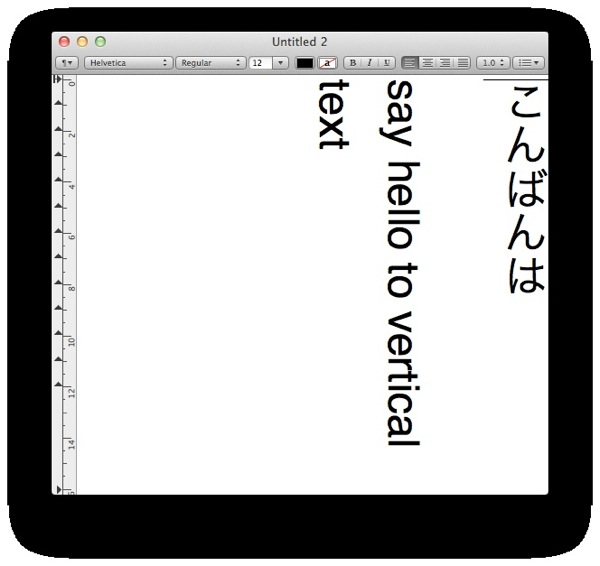
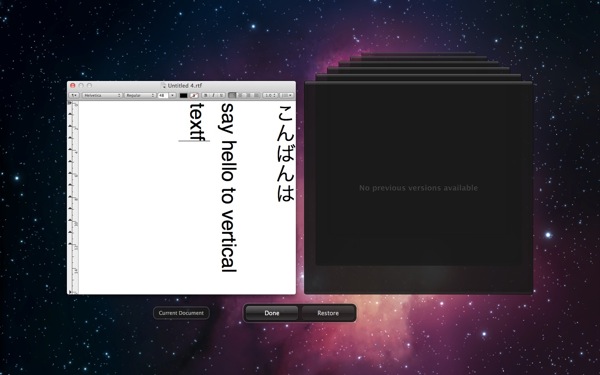
The system also adds support for vertical text. Not so useful for occidental languages, but for oriental ones (Chinese, Japanese, so on). Surely oriental writers will find more comfortable to write their texts in the way they're used to do calligraphic-ally.

liondp4-29.jpg

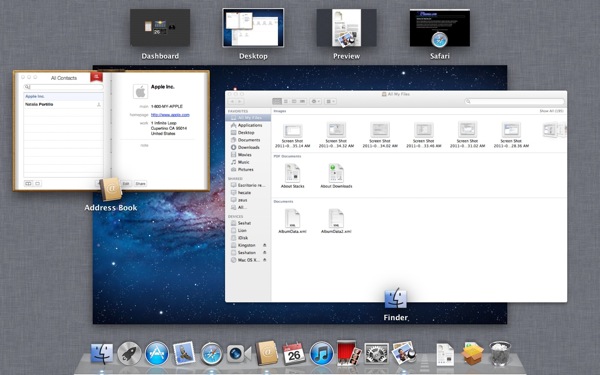
One of the new features of Lion is called "Mission Control". It more or less substitutes Exposé.

The dock still appears on its place, the non-full screen apps on the middle, and the full screen ones (including Dashboard) on the top.

liondp4-32.jpg

Resume and versioning.

When you shut down the system with opened applications and documents, they appear immediately on the next boot, in exactly the same place you left it, including the cursor position. That's resume. It also happens if you close a single application with new or modified documents. This must, however, be supported specifically in the application, so old non prepared applications will not get this functionality for free (d'oh!)

Also when you are working with the document versions are automatically saved periodically without user intervention, and when you save it, different versions are saved also separately. On disk you'll just see the last one, but you can access always to a restore versions screen, that similar to Time Machine shows you all the stored versions so you can choose to which one revert.

Also, you can duplicate it.

Ok, all of this features where in Lisa Office System (pre-Mac Apple's system) 28 years ago (1983), but from my filesystem-expertise I assure you it's not so easy to implement this things transparently for the user to a system not designed with this features from the start.

External and third-party applications

Most of the external applications are compatible as is, with some exceptions.

Little Snitch gets silently disabled, and requires to be updated to version 2.4 at least. Same applies for VMWare, VirtualBox and Parallels, requiring new versions with explicit Lion support.

Mono and applications that use it are currently unsupported, and the Mono team is working on this. Even MonoDevelop crashes.

Java applications will require downloading a Java runtime on first launch.

iTunes comes as 10.3.1, while on Snow Leopard it's 10.3, and is absolutely not Lion aware.

Most other applications simply work flawlessly.

Sadly iWork is not yet Lion-aware (it's time for iWork '11!!!) so nothing is autosaved.

Also Xcode 3 does not load, crashes with error -10658, so developers must migrate to Xcode 4 now.

EDIT: I installed Xcode 4 (that become free with Lion's launch) and then Xcode 3 is working again. Maybe just a Xcode 3 reinstallation would have solved it also.